Manage quotes
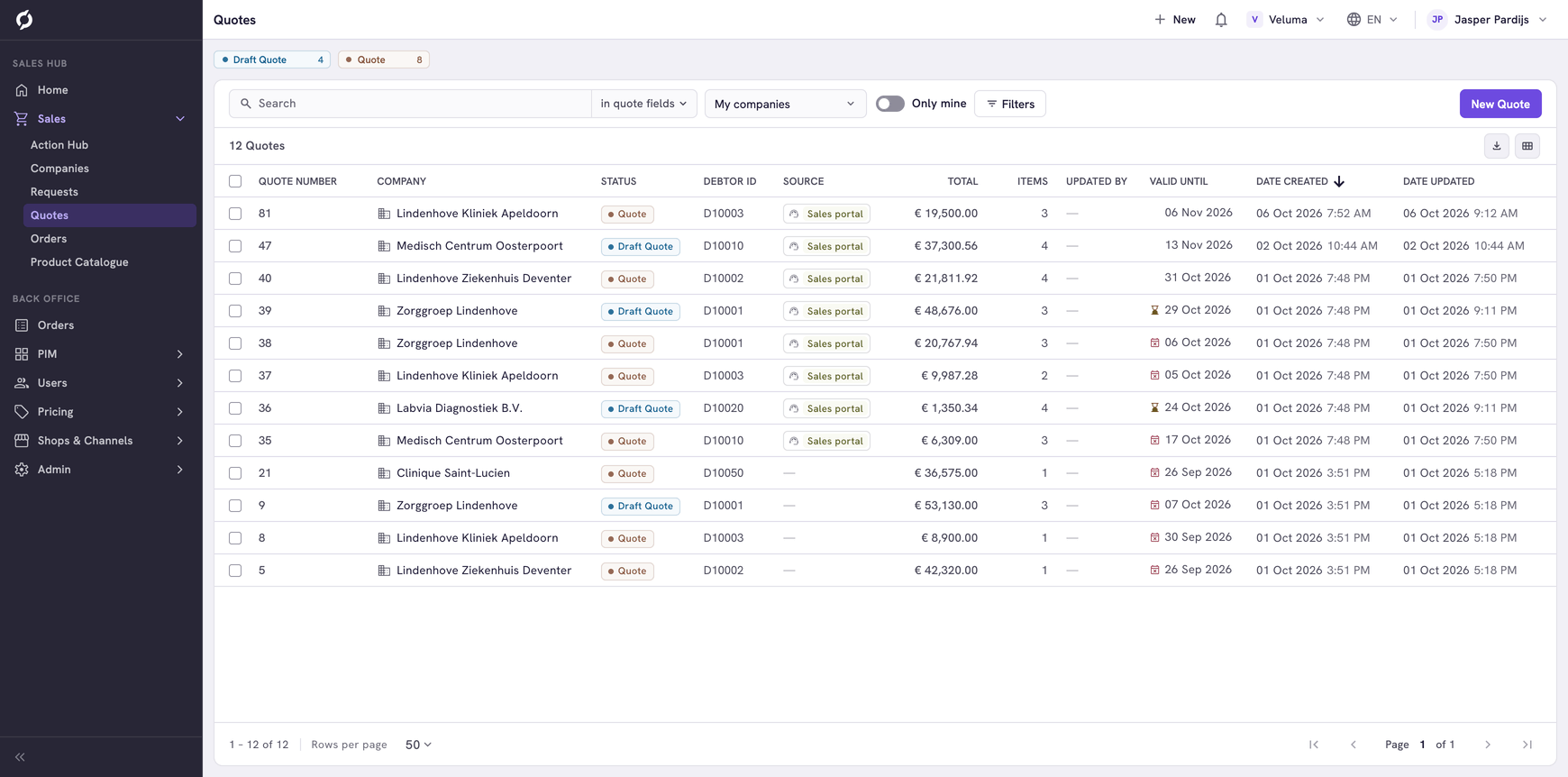
The Quotes list holds every quote of your environment, drafts included. Use it to find a quote, to see which quotes are about to expire and to start a new one.
Before you begin
You need Sales Hub access and the Order Data role. To create or delete a quote you need Owner access.
Find a quote
Go to Sales > Quotes. The newest quotes are on top. Click a row to open the quote in a new browser tab.
The list shows the quotes of all your colleagues. Switch on Only mine, next to My companies, to see only those of your own customers.
To find one quote, search on its number, the company name, the debtor ID, the name of the contact or the reference. See Work with lists for search, filters and columns.
Follow up quotes that are about to expire
- Click the column heading Valid Until to sort on that date.
- Look for the icons in that column. A warning icon marks a quote that expires within seven days, an error icon one that has expired.
- Open the quote, call the customer or set a new date under Valid until.
The Home page counts the same quotes under Quotes expiring / expired.
Create a quote
Click New Quote at the top right. See Create a quote.
Read the columns
| Column | What it shows |
|---|---|
| Status | The name of the status, for example Draft Quote or Quote |
| Total, € | The total of the quote excluding VAT |
| Source | Where the quote came from, for example Webshop or Sales portal |
| Updated By | The colleague who changed the quote last |
Delete a quote
- Tick one or more quotes.
- Click Delete above the table and confirm.
A deleted quote is gone for good, with its lines. It cannot be brought back.