Product Catalogue
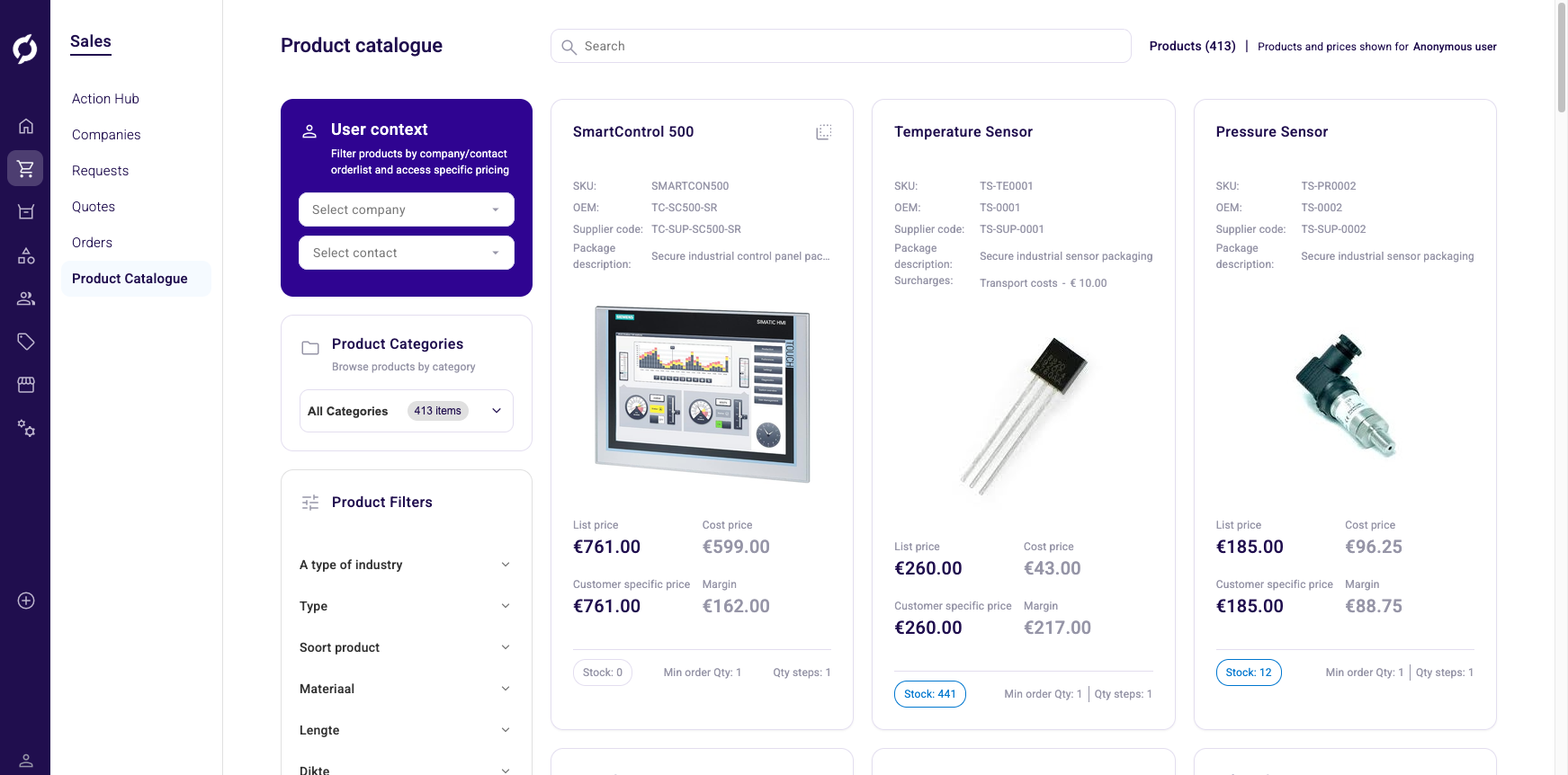
Browse all products in a card-based grid with company-specific pricing, filter by category and attributes and navigate to product detail pages.
Before you begin
You need the Product role to access this page.
Open the product catalogue
Go to Sales > Product Catalogue in the sidebar.
Always set a company and contact before browsing the catalogue. This shows the correct customer-specific pricing and product availability.
You see a card-based product grid with a left sidebar for filters and a paginator at the bottom. The default page size is 24 products. You can change it to 6, 12, 48 or 96. Products are sorted by last modified date (newest first).
Search for products
Type at least 2 characters in the Search field. The search runs instantly with no submit button needed. Click the X to clear.
The search looks across these fields: Bar Code, Cluster ID, Custom Keywords, Description, EAN Code, Keywords, Manufacturer, Manufacturer Code, Name, Product ID, Short Description, SKU, Supplier and Supplier Code.
The product count updates to reflect search results.
Set user context
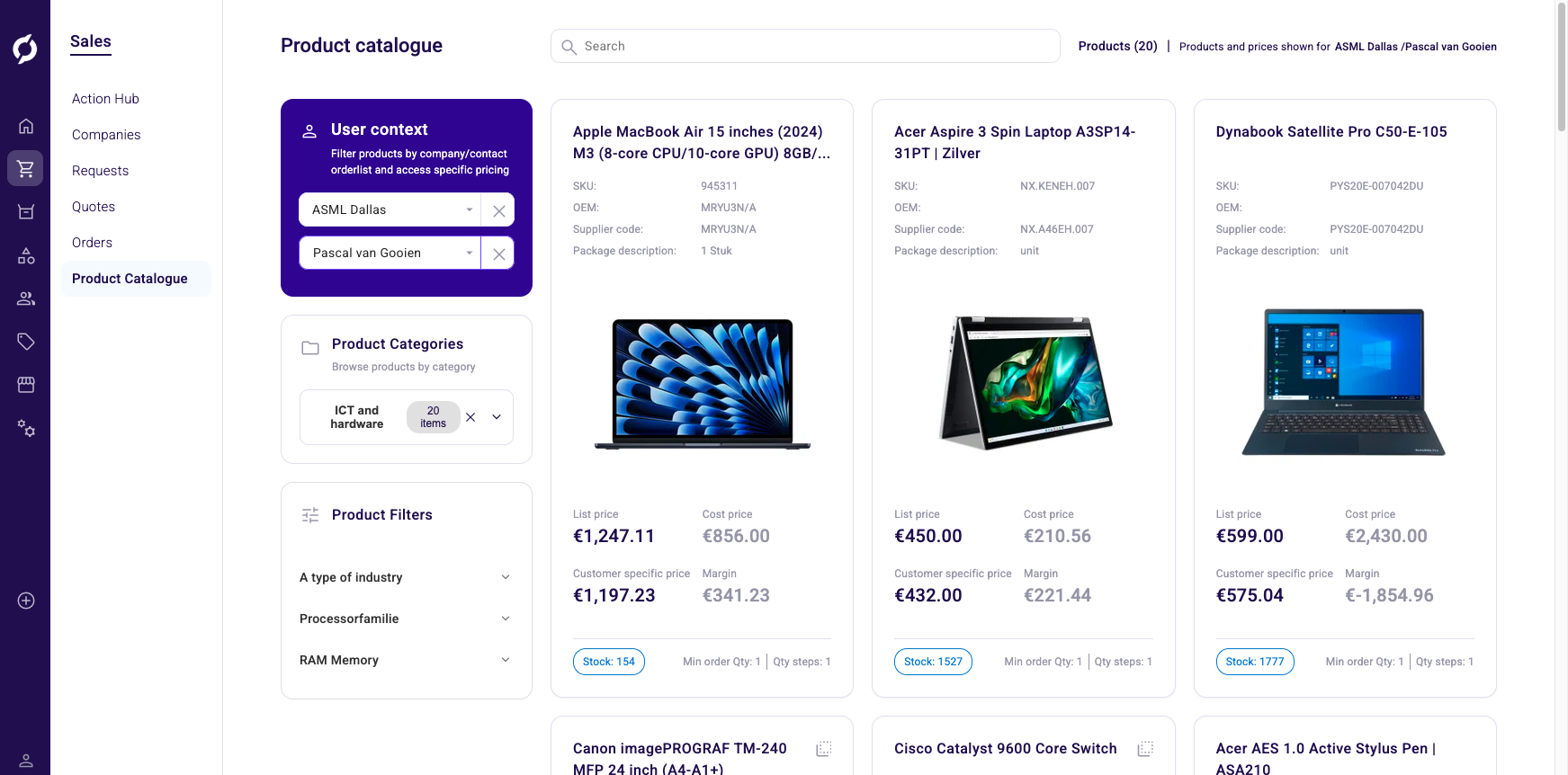
The User context panel in the left sidebar lets you view the catalogue as a specific company or contact. This affects both which products are visible (based on order lists assigned to that user) and the pricing shown.
- Select a company to see that company's product catalogue and pricing.
- Optionally select a contact within that company for contact-specific pricing and catalogue visibility.
The header shows the selected company and contact name, or "Anonymous user" if none is selected. Remove the company or contact by clicking their remove buttons. Your selection persists during the session.
Filter by category
- Click the category dropdown in the left sidebar (shows "All Categories" or the current category name).
- A category browser dialog opens where you can browse or search for a category.
- Select a category to filter the product grid.
- Click the X next to the category name to clear the filter.
The product count updates to show how many items are in the selected category.
Filter by product attributes
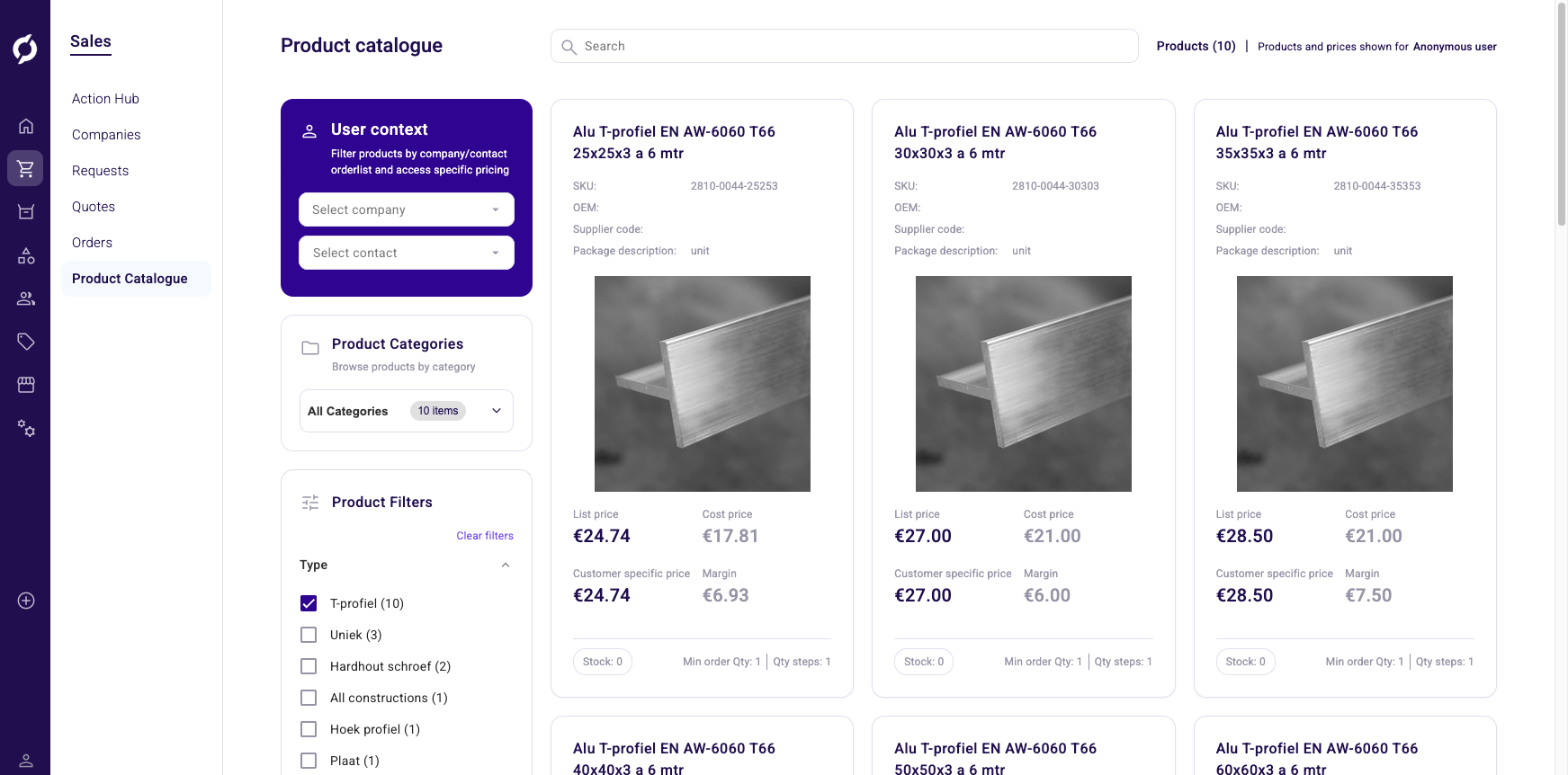
The Product Filters section in the left sidebar shows checkboxes for each searchable product attribute (for example color, material or brand). Only attributes marked as public and searchable in the PIM appear here.
- Each filter value shows a count of matching products in parentheses.
- Check one or more values to narrow the results.
- Counts update dynamically as you apply filters.
- Click Clear filters to remove all attribute filters at once.
- Filter groups expand and collapse by clicking the attribute name.
On mobile devices, filters are accessed through a Product Filters button that opens a full-screen overlay.
Product cards
Each product card shows the following information:
| Element | Description |
|---|---|
| Product name | Clickable, opens the product detail page |
| SKU | Stock Keeping Unit code |
| OEM | Original Equipment Manufacturer code (if available) |
| Supplier code | Supplier's product code (if available) |
| Package description | How the product is packaged or sold |
| Surcharges | Any applicable surcharges with type (flat fee in EUR or percentage) |
| Product image | Clickable, opens the product detail page. Shows a placeholder if no image is uploaded |
| List price | Standard list price in EUR |
| Cost price | Purchase price (hidden if pricing visibility is restricted) |
| Customer specific price | Price for the selected company or contact (only shown when a user context is set) |
| Margin | Difference between selling price and cost price (hidden if pricing visibility is restricted) |
| Stock | Total available quantity (shows "0" in red if out of stock) |
| Min order Qty | Minimum quantity per order |
| Qty steps | Quantity increment unit |
Cluster products display with a cluster icon next to the name. Their data comes from the cluster's default product and surcharges are not shown on cluster cards.