How workflows connect to Propeller
A workflow is a small automation that does a job for you, like flagging quotes that are about to expire or drafting a follow-up. The examples in this library are built in a tool called n8n, but the idea works the same in any similar tool. This page explains how a workflow connects to Propeller and where its results show up, in plain terms first and technical detail after.
In plain terms
Think of a workflow as an assistant that works with your Propeller data. Two things are worth knowing about any workflow in this library.
How it starts. Some workflows wait inside Propeller until someone starts them, for example by clicking a button or chatting with an agent on a page. Others run on their own on a schedule, for example every morning. Nobody clicks anything.
Where its results land. A workflow that someone started answers on the spot, in the panel on the page, like a chat reply. A workflow that runs on its own drops its results into Propeller for you to pick up later, usually as tickets in the Action Hub.
Each entry in the library shows which kind it is at the top, so you know what to expect before you install it. The rest of this page is detail you only need when you build or connect a workflow yourself.
Two ways a workflow runs
Embedded in Propeller. The workflow waits behind a webhook and Propeller calls it when someone uses it. This is how chat and button agents work: a user clicks the Workflows button on a page such as the quote editor, interacts with the agent and Propeller sends the request to the workflow. The workflow answers and the response appears in the panel.
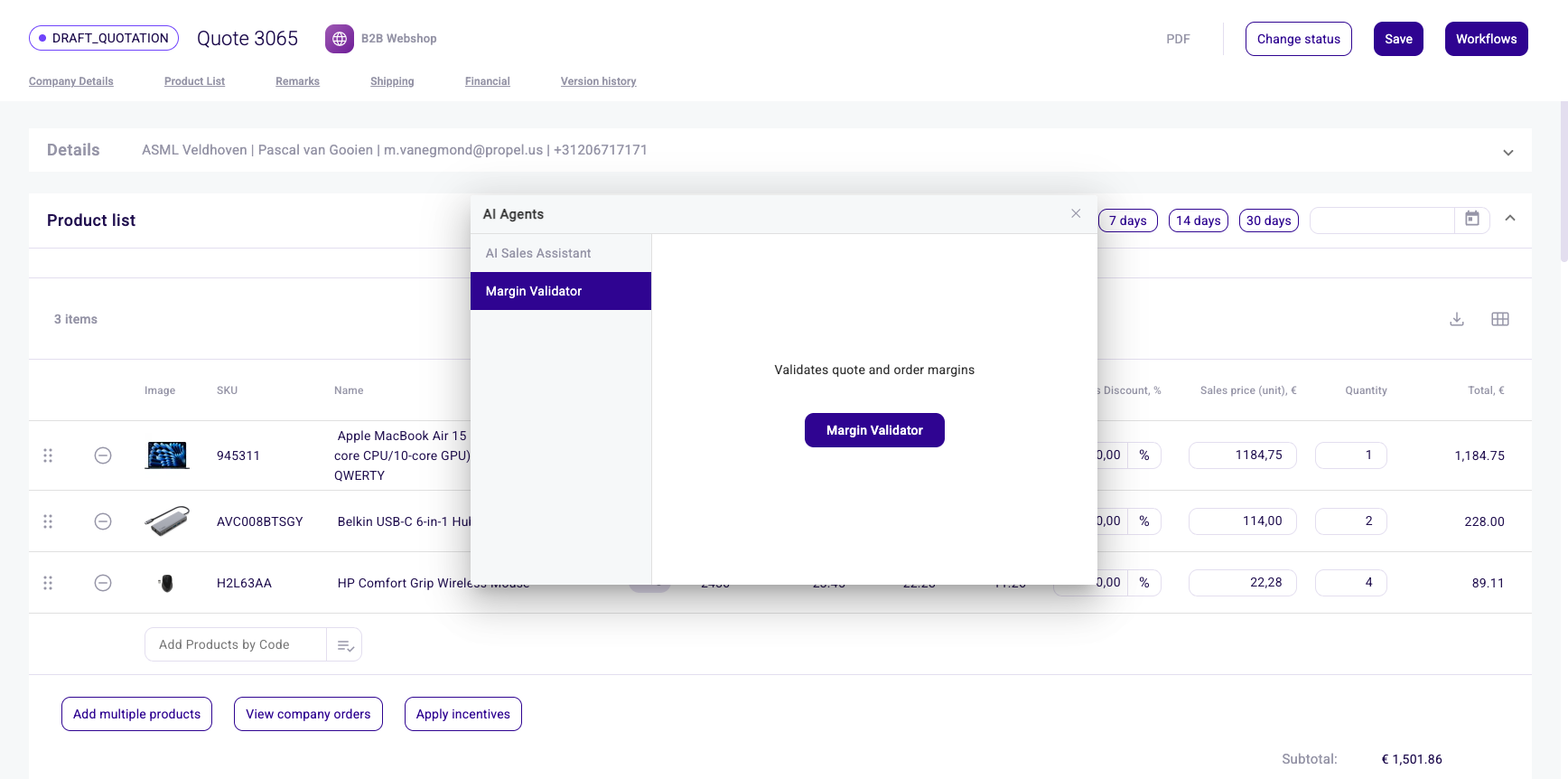
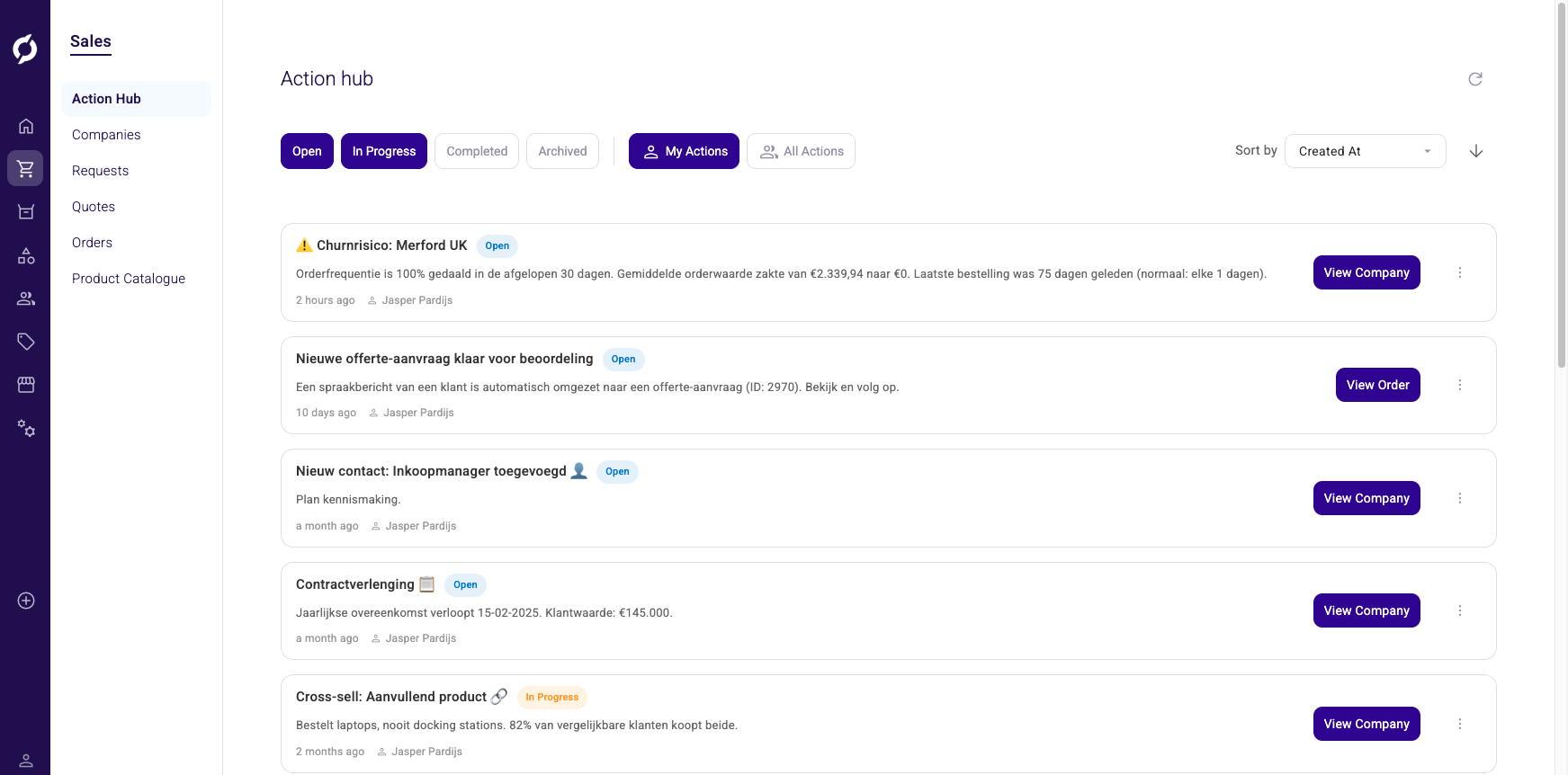
Outside Propeller. The workflow runs on its own, for example on a schedule. It calls the Propeller API to read or change data and pushes its results into Propeller, for example as tickets in the Action Hub. Nobody has to click anything.
The building blocks
| Block | What it does | Where |
|---|---|---|
| API key | Lets your workflow read and change Propeller data | Admin > API Key Management, see API Keys |
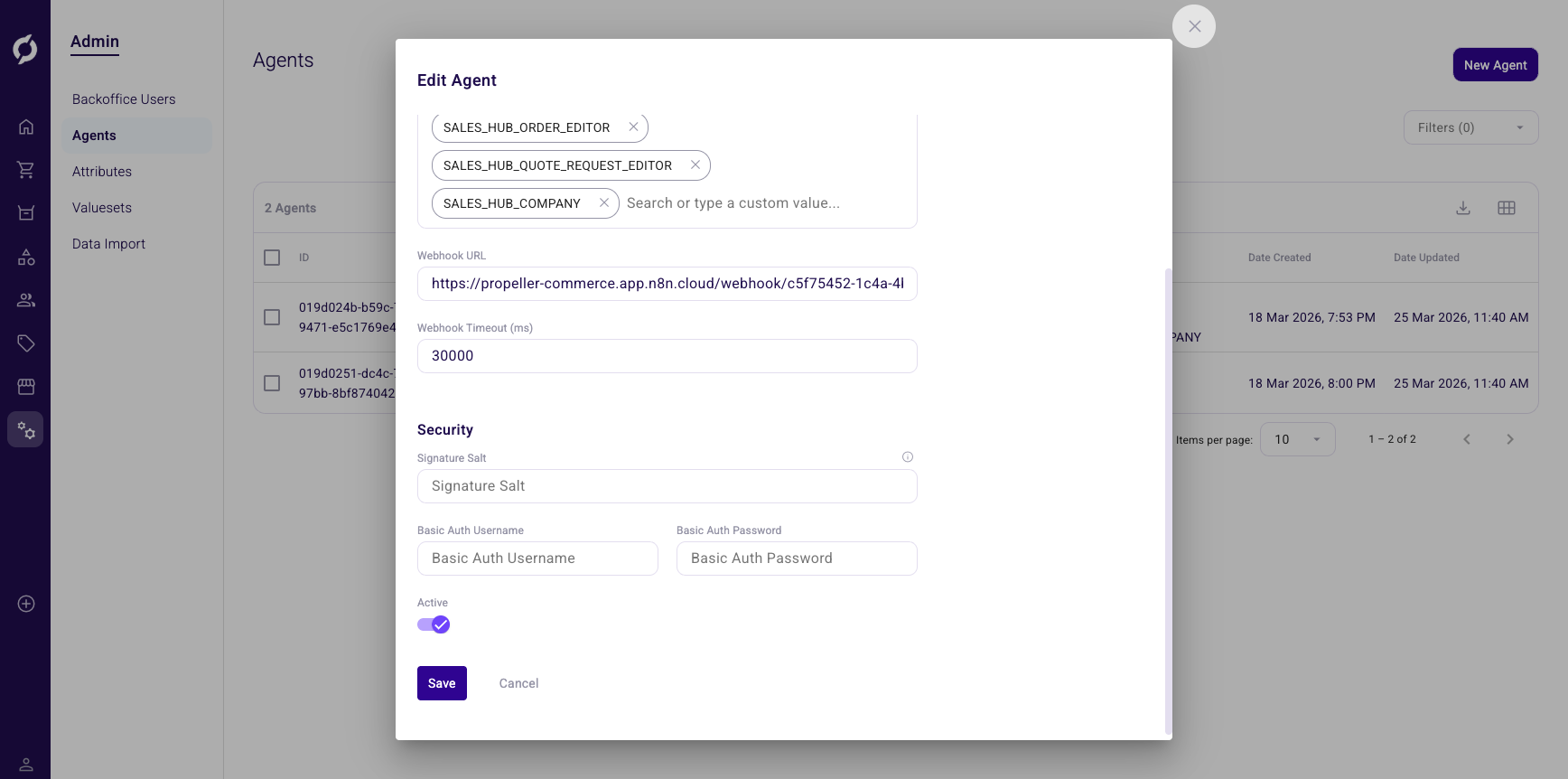
| Agent | Connects an embedded workflow to a page in Propeller through its webhook URL | Admin > Agents, see AI Agents |
| Action Hub | Shows tickets that workflows and agents create, so sales reps can act on them | Sales > Action Hub, see Action Hub |
Every workflow needs an API key. The other two each matter for one of the two kinds: an agent for a workflow embedded in Propeller, the Action Hub for a workflow that runs on its own and leaves tickets behind.
For whoever builds the workflow
The rest of this page is technical. If you are choosing or requesting a workflow rather than building one, you can stop here.
Connecting an embedded agent
For an embedded agent, you paste your workflow's webhook URL into the agent configuration. The configuration also supports basic authentication and a signature salt to secure the connection.
The request and the response
When a user interacts with an agent, Propeller sends a request to your webhook. The body contains the user's message as requestMessage and the context of the page as requestMetadata.payload, for example the quote the user is looking at.
Your workflow answers with a JSON response with three fields:
| Field | What it is |
|---|---|
conversationId | The id that ties the messages of one conversation together. See below |
responseMessage | The text shown to the user in the agent panel |
responseMetadata | Optional extra data, for example a processed flag and a timestamp |
Your workflow creates the conversation id
This is the part that surprises most builders. The first request of a conversation contains no conversation id, because the conversation does not exist yet. Propeller does not generate one for you. Your workflow generates it and returns it as conversationId in the response. Any unique string works. The library examples use a timestamp or the n8n execution id.
From then on, Propeller sends that id back as conversationId in the body of every follow-up request in the same conversation. Return the same id again so the conversation stays together.
So the rule is: reuse the conversation id from the request when there is one, generate one when there is not. In code that looks like this:
const conversationId = body.conversationId
  || body.requestMetadata?.conversationId
  || String(Date.now());
Every example in the library follows this pattern, so you can copy it from any entry.
What this means for the library
Every entry in the workflow library is labeled with where it runs:
- Embedded in Propeller entries need an agent configured in Admin > Agents pointing at your workflow.
- Outside Propeller entries need an API key and, when they create tickets, the Action Hub.
The install guide of each entry walks through the exact steps.