Set up n8n and connect it to Propeller
The examples in the library are built in n8n, a visual workflow tool. This page covers the one-time setup: an n8n account and a Propeller API key. After this, installing any entry from the library takes minutes.
Before you begin
- You need Owner access on the API Key role to create an API key.
- For embedded agents you also need Owner access on the Configuration role to create agents.
Create an n8n account
Sign up at n8n.io. A free or starter subscription is enough to try things out. Upgrade only when your automations go into daily use. You can also self-host n8n if your organization prefers that.
Create a Propeller API key
Your workflows authenticate to Propeller with an API key.
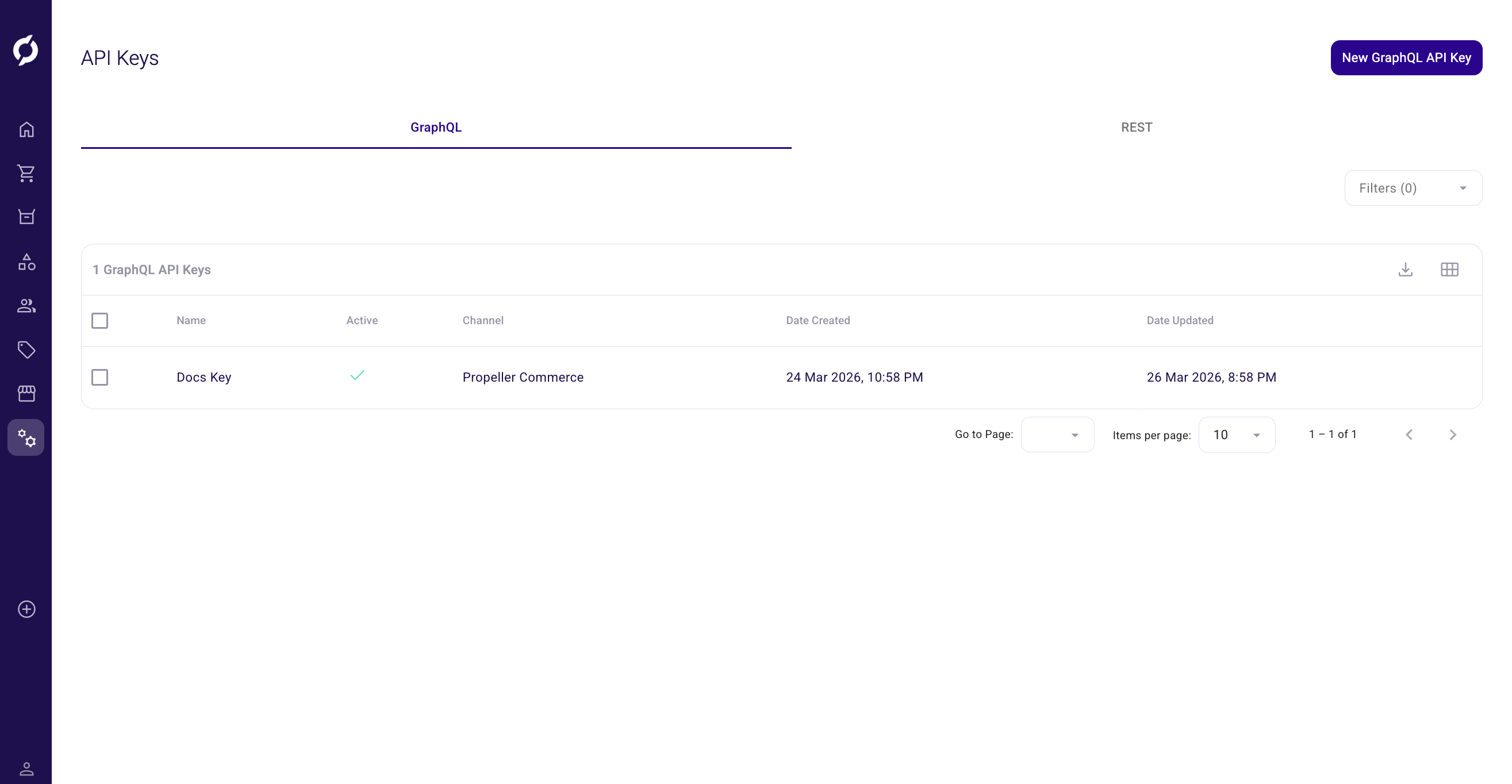
- Go to Admin > API Key Management.
- Create a key. See API Keys for the steps and fields.
- Store the key somewhere safe. You will paste it into n8n as a credential.
When you create the key, give it the least access possible. A key has roles and rights, so grant only what the workflow actually uses. That way the workflow never has more access than it needs. You can change the roles and rights of an existing key at any time by editing it, so start small and extend only when a workflow needs more. Which role an API operation requires is listed per query and mutation in the GraphQL reference in the developer documentation.
Treat an API key like a password. Do not share it, do not put it in a workflow you export and never paste it into an AI assistant.
Save the key in n8n
A workflow has to prove it is allowed to use your Propeller data. It does that with the API key you just created. In n8n you save that key once as a credential, then point your workflow at it.
- In n8n, go to Credentials and create a new credential. When n8n asks which type, choose Header Auth.
- At the top of the screen, give the credential a title you will recognize later, for example
Propeller API key. This title is only a label for yourself. - Below the title you see two fields, Name and Value. Fill them in exactly as in the table.
- Save the credential.
| Field | What to fill in |
|---|---|
| Name | apiKey |
| Value | The API key you copied from Propeller |
This is where almost everyone gets stuck, because two things on this screen are called a name.
The title at the top is yours to choose. The Name field lower down is not. It is a fixed value that tells Propeller where to find your key, so it has to say exactly apiKey. Capital letters do not matter.
If you type anything else there, such as Propeller, the workflow cannot sign in and fails with an error saying the API key is missing.
Point your workflow at the credential
A workflow is a series of steps, which n8n calls nodes. Every step that talks to Propeller needs your credential selected. Where you select it depends on the kind of step. Each library entry tells you which kind that workflow uses.
If the step is called HTTP Request:
- Set Authentication to Generic Credential Type.
- Set Generic Auth Type to Header Auth.
- Under Credential for Header Auth, pick your credential.
If the step is called GraphQL:
- Set Authentication to Header Auth.
- Under Credential for Header Auth, pick your credential.
The workflows you download already have these settings filled in. They look for a credential titled Propeller API key. If you gave yours a different title, open each Propeller step once and pick your credential from the list.
The Propeller API itself is documented in the developer documentation.
Connect an embedded agent (only some workflows)
This step is optional. Many workflows do not need it.
A workflow labeled Outside Propeller runs on its own, for example once a day on a schedule. It reads and writes your data through the API key and pushes its results into Propeller by itself, often as tickets in the Action Hub. There is nothing to connect and nobody clicks anything, so you can skip this section for those.
You only connect an agent for a workflow labeled Embedded in Propeller, the kind a user starts by hand from a button or a chat inside Propeller. Each library entry shows its label at the top, so you know which case you are in before you install it.
To connect an embedded workflow:
- In n8n, your imported workflow starts with a webhook. Copy its production URL.
- Go to Admin > Agents and create an agent. See AI Agents.
- Paste the webhook URL in the Webhook URL field and pick the pages where the agent should appear.
Next step
Pick an entry from the workflow library and follow its install guide.