Workflows & AI Agents
Run workflows and interact with AI agents directly from the pages you work on. Workflows automate repetitive tasks such as sending emails or updating records. AI agents provide a chat or button interface for tasks like order editing, product management and company analysis.
Open the workflows panel
Click the Workflows button on pages that support workflows or AI agents. The button appears on the following pages when agents are configured:
| Page | Agent type |
|---|---|
| Order editor (orders) | SalesHubOrderEditor |
| Order editor (quotes) | SalesHubQuoteEditor |
| Order editor (requests) | SalesHubQuoteRequestEditor |
| Company details | SalesHubCompany |
| Products and clusters | BackofficeProducts |
Navigate the assistant dialog
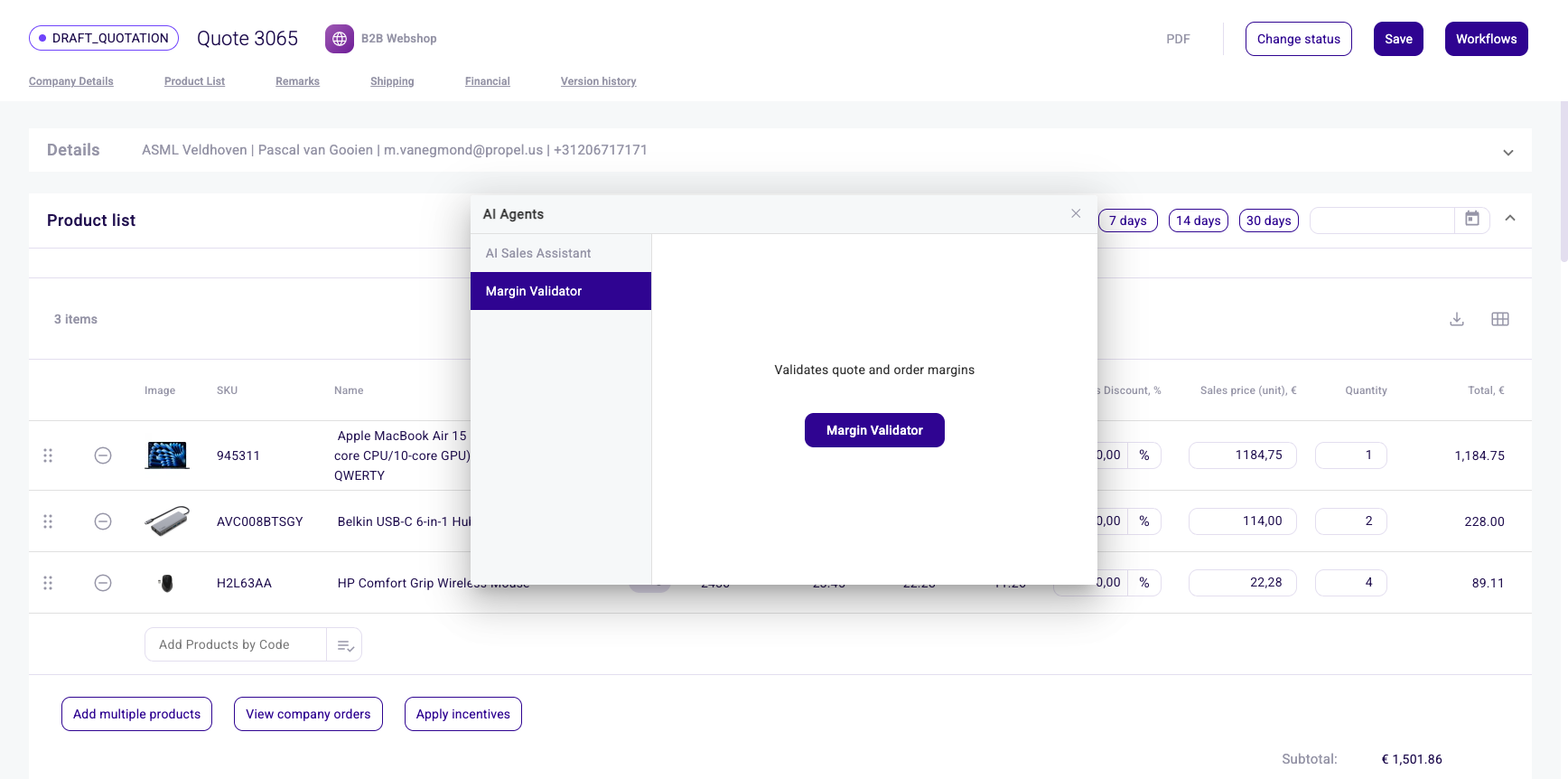
The dialog has two panels:
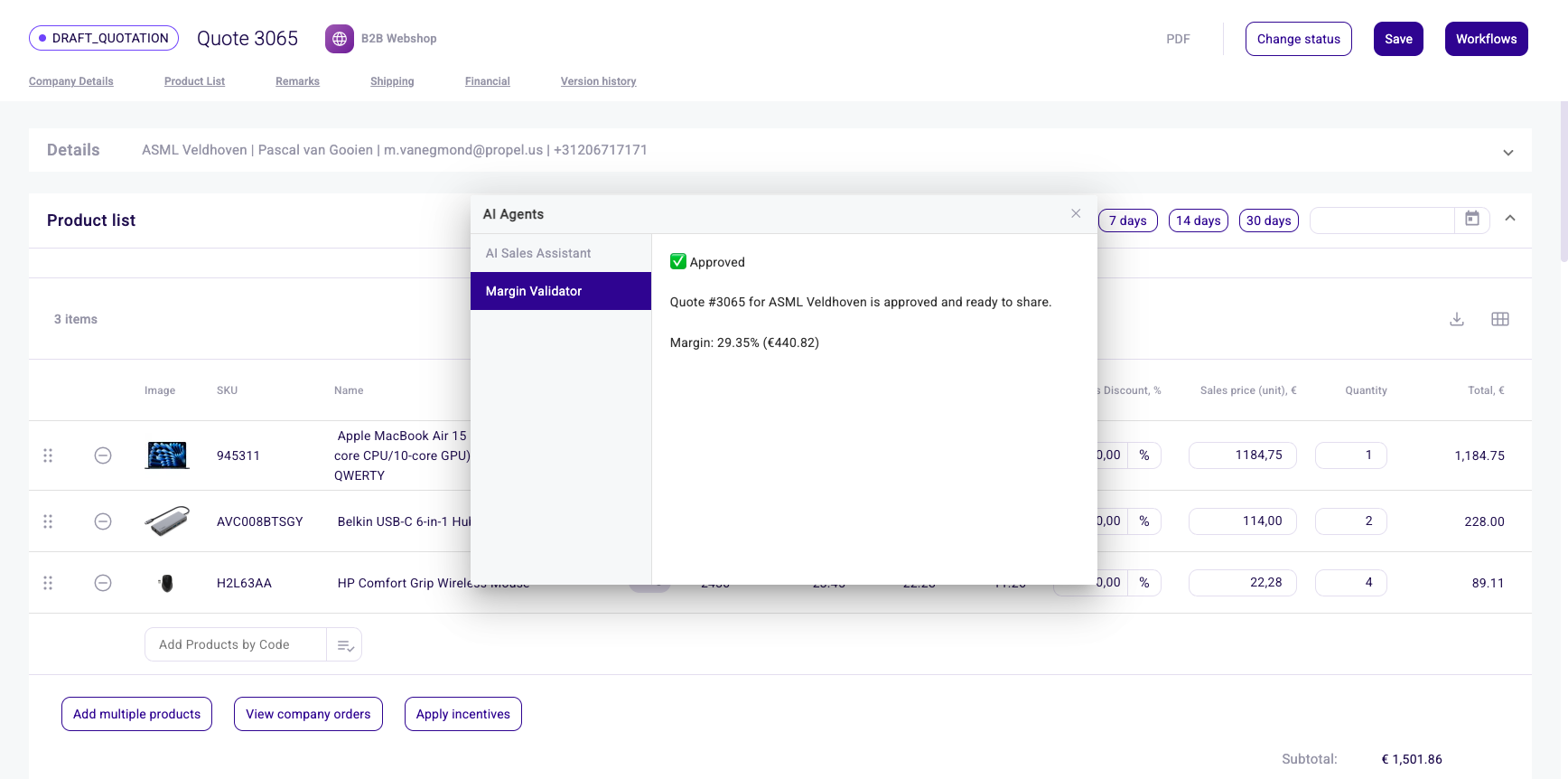
- Left panel: Shows all active AI agents available for your current context. Click an agent to select it.
- Right panel: The interaction area where you communicate with the selected agent.
Conversations are preserved when switching between agents. Your history with each agent is maintained.
Use a chat agent
- A welcome message appears automatically when you select a chat agent.
- Type your message in the input field and press Enter or click Send.
- The agent responds with formatted text (supports markdown, code blocks and JSON).
- Each message shows a timestamp.
- A typing indicator (animated dots) shows while the agent processes your message.
Single-turn agents complete after one exchange. Multi-turn agents allow ongoing conversation.
Use a button agent
- The agent's description is shown along with a button.
- Click the button to trigger the agent.
- The response appears in the panel.
- Multi-turn button agents transition to a chat interface after the first response, allowing follow-up questions.