Companies
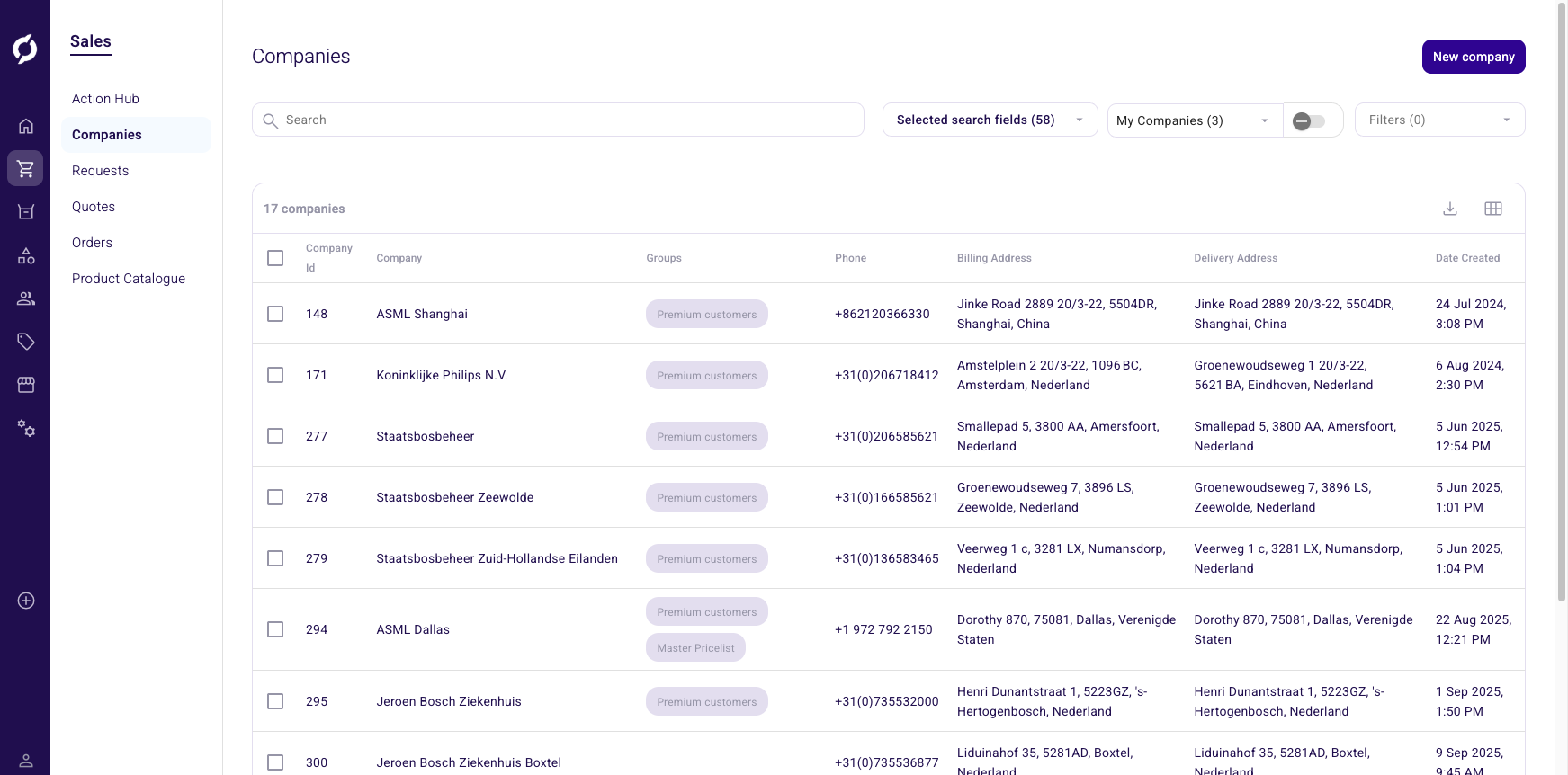
The Companies page lists all companies in the system. You can search, filter and open a company to view its contacts, addresses, quotes and orders.
Before you begin
You need the User role to access the Companies page.
Search for companies
- Go to Sales > Companies.
- Type at least 3 characters in the Search field. The search runs automatically.
- By default, the search looks across all fields. To narrow it, click Selected search fields and choose specific fields like company name, contact email or address.
Filter companies
- Click Filters to open the filter panel.
- Select a date range filter (Company Created At, Company Last Modified At, Contact Created At, Contact Last Modified At or Contact Date Of Birth).
- Set the start and end dates.
- Active filters appear as chips below the search bar. Click the X on a chip to remove it.
Use My Companies
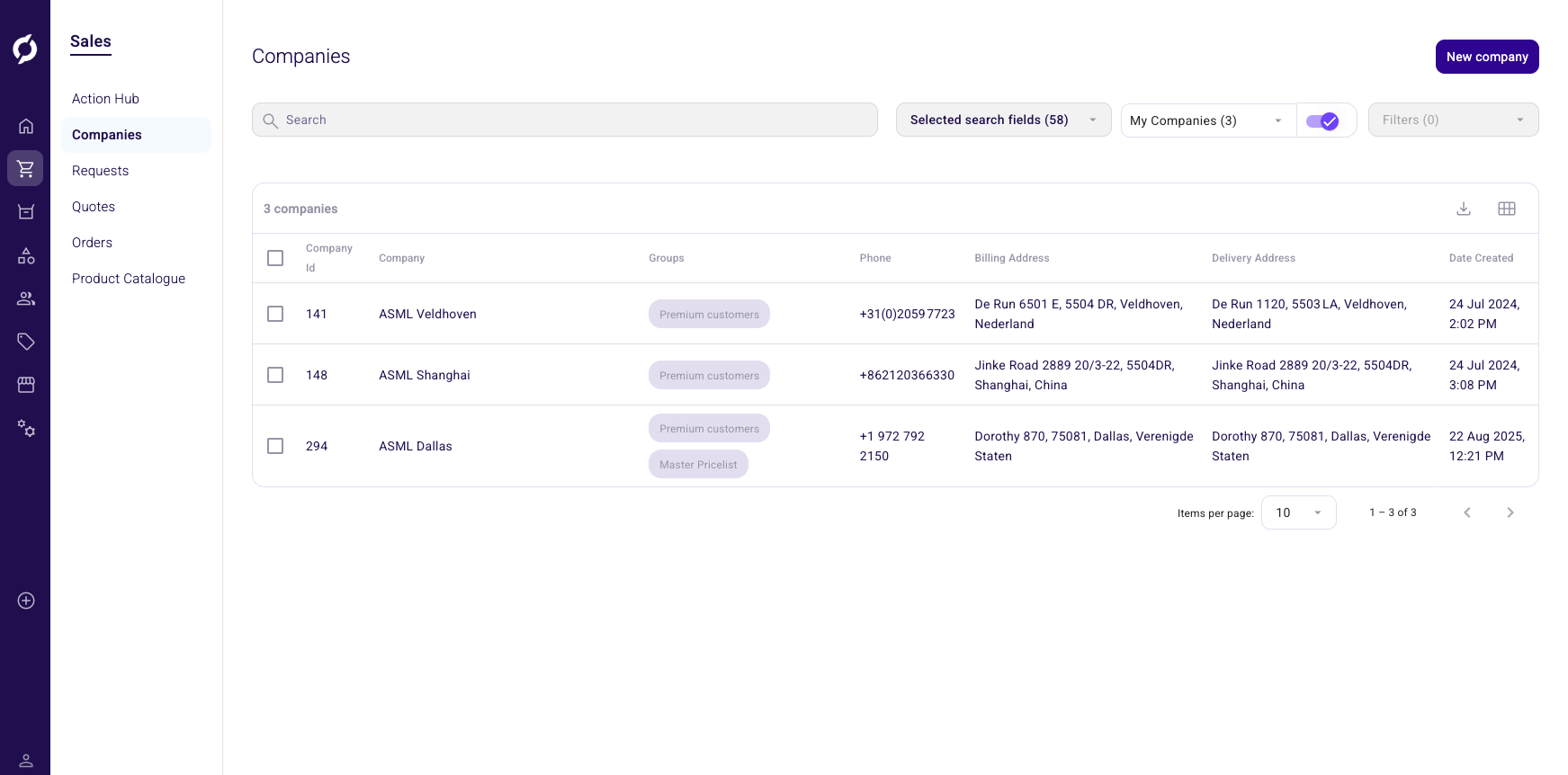
My Companies is a personal filter that lets you focus on companies you work with regularly.
- Open the My Companies dropdown.
- Search for companies by name or debtor ID.
- Check the companies you want to save.
- Turn on the slider toggle next to the dropdown to activate the filter.
When the slider is on, the table only shows your selected companies. Your selection is remembered across sessions. Turn the slider off to return to the full list.
tip
When you enable My Companies, it filters all Sales Hub pages (quotes, orders, requests) to show only data from your selected companies.
Create a company
You need Owner access on the User role.
- Click New company in the top right.
- A new company named "New company" is created automatically.
- You are redirected to the company details page to fill in the information.
Delete companies
You need Owner access on the User role.
- Select one or more companies using the checkboxes.
- Click Delete companies.
- Confirm in the dialog.
Export the company list
- Click the Export button (download icon) in the top right.
- The current table view is downloaded as a CSV file.
Customize table columns
- Click the Table editor button (grid icon) in the top right.
- Toggle columns on or off. Company ID and Company name cannot be hidden.
Table columns
| Column | Description |
|---|---|
| Company Id | Unique numeric ID |
| Company | Company name |
| Groups | Group labels assigned to the company |
| Phone | Phone number from the company address |
| Billing Address | Invoice address |
| Delivery Address | Delivery address |
| Date Created | When the company was created |