Why this price?
With one click on a quote or an order, this agent explains where the price of every line comes from: the list price, the discount or bulk price that applies and the price for this customer at this quantity. It also says when a lower price is a few pieces away and when a line price differs from the calculated one.
To compare the prices with what the customer paid before, use Price history.
| In short | |
|---|---|
| Where you use it | On a quote or an order in the Sales Hub, behind the Workflows button |
| Starts | With a click on the agent |
| Changes in Propeller | Nothing. It only reads |
| Uses AI | No |
| Texts | English or Dutch, a setting |
| Runs in n8n | One per click |
| Difficulty | Easy |
What you get
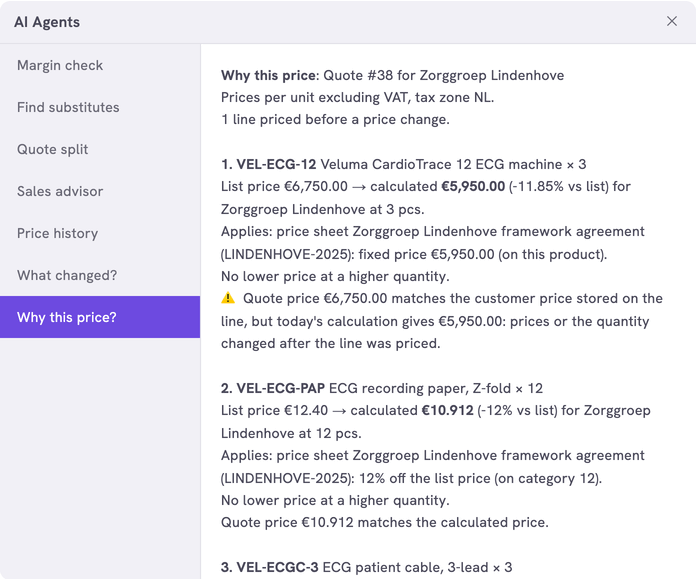
| Per line | What it shows |
|---|---|
| Calculated | The list price and the price for this customer at this quantity |
| Applies | The price sheet discount, the bulk price or the list price that sets the price, with its value and the quantity it starts at |
| Next break | The quantity at which the price drops and the price from there |
| Check | Whether the line price matches. A typed price shows as a manual price. A price from before a change in the prices shows as priced before a price change |
Cost prices and margins stay hidden unless you switch them on.
What you need
- An n8n account with the credential
Propeller API key. See Set up n8n. - An API key with Viewer access on Product Data and Pricing.
- Backoffice access and the Configuration role with Owner access, to register the agent.
How it works
Propeller sends the lines of the quote or order that is open. For each line the agent asks Propeller to explain the price, the same calculation as Explain price on the Price tab of a product. A line price within 1 cent of the calculated price counts as the same.
The workflows and agents in the Agent Hub are free to use and adapt. They are examples, not supported product features. Test them in a test environment and check the results before you use them on real customers.
Install it
Install a workflow from the library explains each step.
- Import the file into n8n.
- Check that the node Explain Prices uses the credential
Propeller API key. - Follow Register the agent in Propeller with the values below.
- Open a quote in the Sales Hub, click Workflows and click the agent.
| Field | Value |
|---|---|
| Trigger | Button |
| Interaction mode | Single turn |
| Placements | Sales Hub · Quote editor and Sales Hub · Order editor, a quote or an order in the editor |
| Webhook Timeout (ms) | 60000 for quotes with many lines. Each line takes about a fifth of a second |
The explanation shows in the dialog. An error instead of an answer means the address, the login or the key is not right. It can also mean that the workflow is not published.
Make it yours
| Setting | Default | What it does |
|---|---|---|
LANGUAGE | 'EN' | The language of the answer and of the price sheet names: 'EN' or 'NL' |
CURRENCY | 'EUR' | The currency sign of the amounts |
TAX_ZONE | 'NL' | The tax zone of the price calculation |
SHOW_COST | false | true adds the cost price and the margin per line. Only when your sales reps may see them |
PRICE_TOLERANCE | 0.01 | How far a line price may be from the calculated price and still match |
MAX_LINES | 40 | The lines explained per click |
Limits
- A category discount shows the number of the category, not its name.
- The agent shows which discount applies, not why Propeller prefers it over the others.
Related pages
- Price history - another agent for quotes and orders
- Set the prices of a product - Explain price in the Backoffice
- Price Sheets