What changed?
With one click on a quote or an order, this agent tells you what changed in its last save: lines added and removed, quantities, prices, cost prices, line notes, the total and the status. It also names who saved it and lists what you changed in the editor without saving.
| In short | |
|---|---|
| Where you use it | On a quote, an order or a request in the Sales Hub, behind the Workflows button |
| Starts | With a click on the agent |
| Changes in Propeller | Nothing. It only reads |
| Uses AI | No |
| Texts | English, Dutch or French: a setting, or the language of the button label that was clicked |
| Runs in n8n | One per click |
| Difficulty | Easy |
What you get
The answer compares the newest saved version with the one before it.
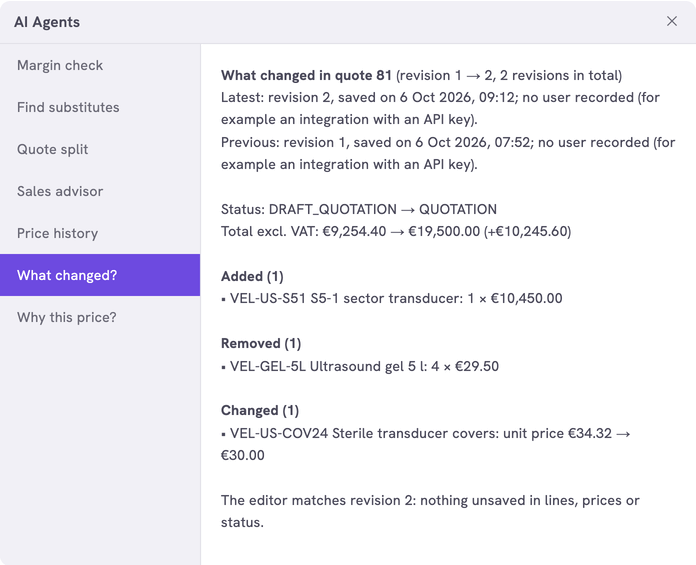
| Part of the answer | What it shows |
|---|---|
| Latest and Previous | The number of each version, when it was saved and by whom |
| Status and total | The status and the total without VAT before and after. Shipping and payment costs when they changed |
| Added, Removed, Changed | The lines that came or went. The quantities, prices per piece, cost prices and line notes that changed |
| Line notes | When there is only one saved version: the notes on the lines, such as the note Substitute finder puts on a line it swapped in |
| Not saved yet | What the editor shows that differs from the last save |
A save by an integration shows no name.
What you need
- An n8n account with the credential
Propeller API key. See Set up n8n. - An API key with Viewer access on Order Data.
- Backoffice access and the Configuration role with Owner access, to register the agent.
How it works
Propeller keeps a version of a quote or an order when it is saved. While it is a draft, each save replaces that version. A new version starts when the status changes. After that every save adds one. So a draft shows one version until its status changes.
The workflows and agents in the Agent Hub are free to use and adapt. They are examples, not supported product features. Test them in a test environment and check the results before you use them on real customers.
Install it
Install a workflow from the library explains each step.
- Import the file into n8n.
- Check that the node Fetch Revisions uses the credential
Propeller API key. - Follow Register the agent in Propeller with the values below.
- Open a quote in the Sales Hub, click Workflows and click the agent.
| Field | Value |
|---|---|
| Trigger | Button |
| Interaction mode | Single turn |
| Placements | Sales Hub · Quote editor, Sales Hub · Order editor and Sales Hub · Request editor, a quote, an order or a request in the editor |
The answer shows in the dialog. An error instead of an answer means the address, the login or the key is not right. It can also mean that the workflow is not published.
Make it yours
| Setting | Default | What it does |
|---|---|---|
LANGUAGE | 'EN' | The language of the answer: 'EN', 'NL' or 'FR' |
LABEL_LANGUAGES | {} | The agent's button label in each language, for example { 'What changed?': 'EN', 'Wat is er veranderd?': 'NL', "Qu'est-ce qui a changé ?": 'FR' }. A click on the button sends its label as the message. When the message is one of these labels, the answer is in that label's language. With {} the answer is always in LANGUAGE |
CURRENCY | 'EUR' | The currency sign, when the quote or order has none |
MAX_LINES | 20 | The lines listed per part. The rest is counted |
TIMEZONE | 'Europe/Amsterdam' | The time zone of the save times |
Limits
- Only the newest two versions are compared.
- Addresses, delivery dates, discounts and the Valid Until date are not compared. When only these changed, the answer says that something else was saved.
- When a colleague saved after you opened the editor, reload the page first. Otherwise their changes show as not saved yet.
Related pages
- Price history - another agent for quotes and orders
- Change the status of a quote or order
- Register an AI agent