Buying team overview
With one click on a company page, this agent shows who buys at the company and how much. It also flags what needs attention, such as a limit that is too low.
For a brief before a meeting, use the Customer pre-meeting summary.
| In short | |
|---|---|
| Where you use it | On the page of a company in the Sales Hub, behind the Workflows button |
| Starts | With a click on the agent |
| Changes in Propeller | Nothing. It only reads |
| Uses AI | No |
| Texts | English, Dutch or French: a setting, or the language of the button label that was clicked |
| Runs in n8n | One per click |
| Difficulty | Easy |
What you get
An answer looks like this:
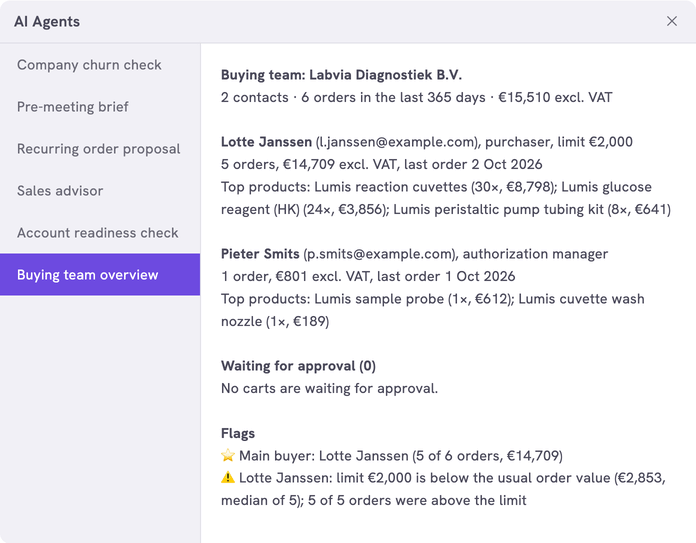
Waiting for approval lists webshop carts that an authorization manager still has to approve.
| Flag | Shows when |
|---|---|
| Main buyer | For the contact with the most orders in the period |
| Never ordered | A contact has never ordered |
| Limit below the usual order value | A purchaser usually orders more than their limit |
| No authorization manager | A purchaser has a limit, but nobody in the company can approve an order above it |
What you need
- An n8n account with the credential
Propeller API key. See Set up n8n. - An API key with Viewer access on User management, Order Data and Product Data.
- Backoffice access and the Configuration role with Owner access, to register the agent.
How it works
An order counts for the contact who placed it. Spend is the total of the order lines without VAT, so shipping and payment costs are left out.
The workflows and agents in the Agent Hub are free to use and adapt. They are examples, not supported product features. Test them in a test environment and check the results before you use them on real customers.
Install it
Install a workflow from the library explains each step.
- Import the file into n8n.
- Check that the five nodes that talk to Propeller use the credential
Propeller API key. - Follow Register the agent in Propeller with the values below.
- Open a company in the Sales Hub, click Workflows and click the agent.
| Field | Value |
|---|---|
| Trigger | Button |
| Interaction mode | Single turn |
| Placements | Sales Hub · Company, the page of a company in the Sales Hub |
| Webhook Timeout (ms) | 60000. A long order history takes time: 1,079 orders took 10 seconds in a test |
The overview shows in the dialog. An error instead of an overview means the address, the login or the key is not right. It can also mean that the workflow is not published.
Make it yours
| Setting | Default | What it does |
|---|---|---|
LANGUAGE | 'EN' | The language of the answer and of the product names: 'EN', 'NL' or 'FR' |
LABEL_LANGUAGES | {} | The agent's button label in each language, for example { 'Buying team': 'EN', 'Inkoopteam': 'NL', "Équipe d'achat": 'FR' }. A click on the button sends its label as the message. When the message is one of these labels, the answer is in that label's language. With {} the answer is always in LANGUAGE |
CURRENCY | 'EUR' | The currency sign of the amounts |
PURCHASE_STATUSES | NEW, CONFIRMED, VALIDATED, ARCHIVED | The statuses that count as a purchase. See Fill in order status codes |
HISTORY_DAYS | 365 | The period of orders the overview covers |
TOP_PRODUCTS_PER_CONTACT | 3 | The number of top products per contact, at most 10 |
LINE_BUDGET | 20000 | The most order lines read per click. More lines take more time |
Leave the other settings as they are.
Limits
- Above about 20,000 order lines it reads the newest orders only. The answer says so.
- The limit flag compares the limit with the order lines without VAT and costs.
- The first 100 contacts and the first 25 carts are shown. The answer says so when there are more.
- Orders placed by someone who is not a contact of the company are counted on one line.
Related pages
- Account readiness check - another agent for the company page
- Set what a contact may order without approval
- Register an AI agent