Action Hub
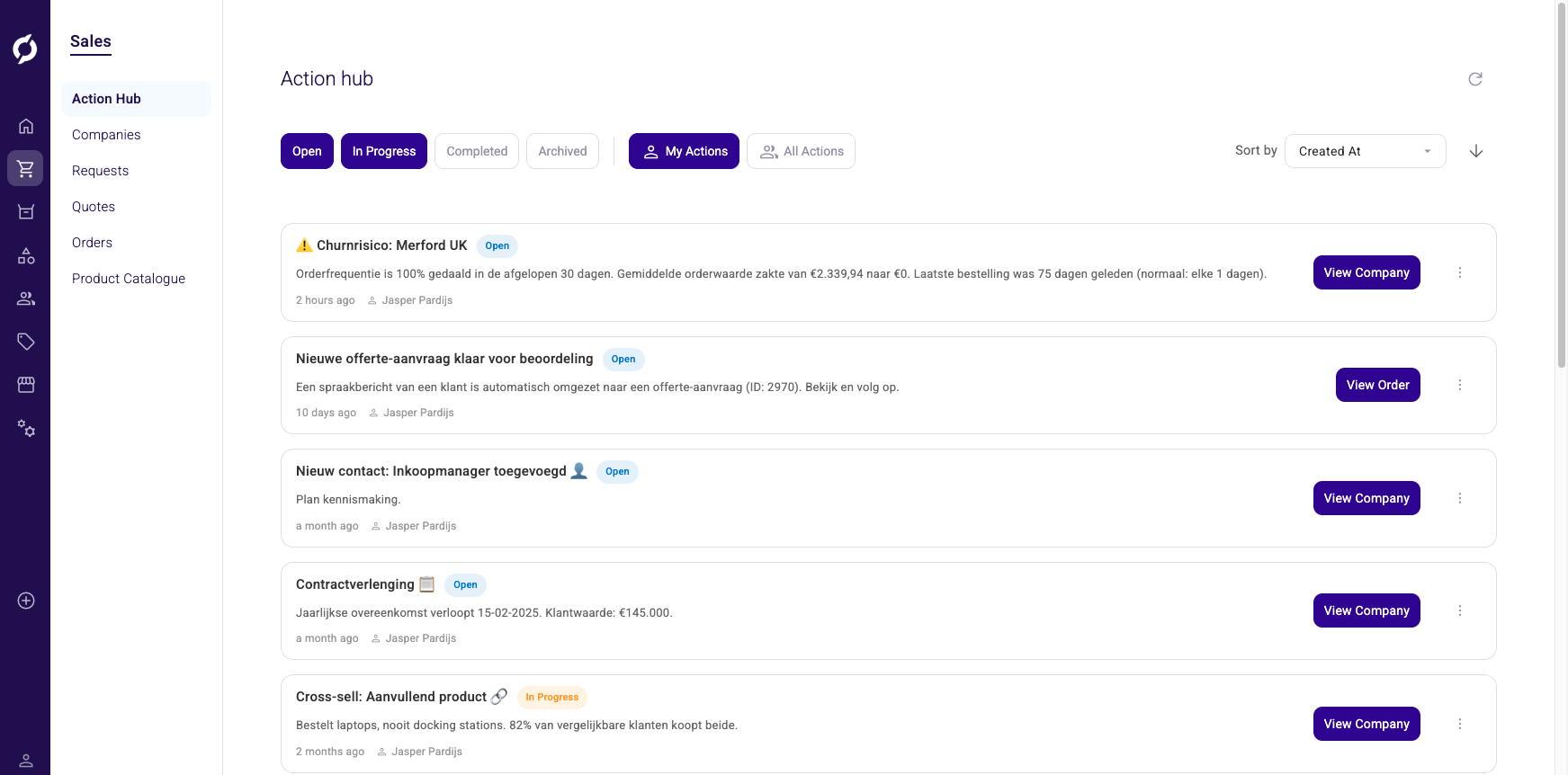
The Action Hub is where you get proactive tasks and notifications from AI agents and workflows. Each task appears as a ticket with an action you can take, such as calling a contact, viewing an order or sending an email.
Start your day in the Action Hub to see which AI-generated tasks need your attention.
Before you begin
You need the Sales role to access the Action Hub. Tickets only appear if AI agents have been configured by your administrator.
Filter tickets
- Go to Sales > Action Hub.
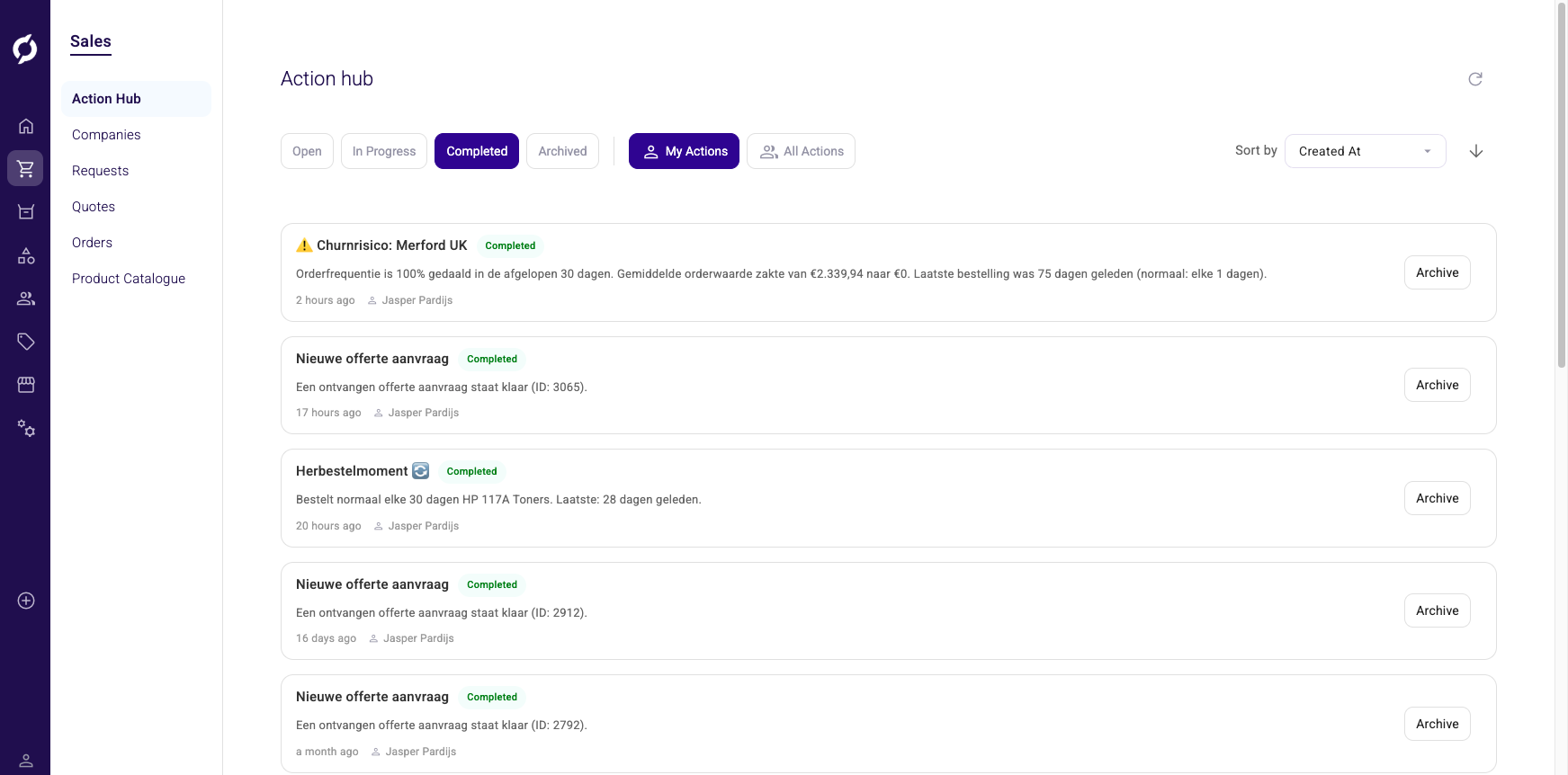
- Use the status buttons at the top to toggle which tickets you see: Open, In Progress, Completed or Archived. By default, Open and In Progress are selected.
- Toggle between My Actions (tickets assigned to you) and All Actions (all tickets).
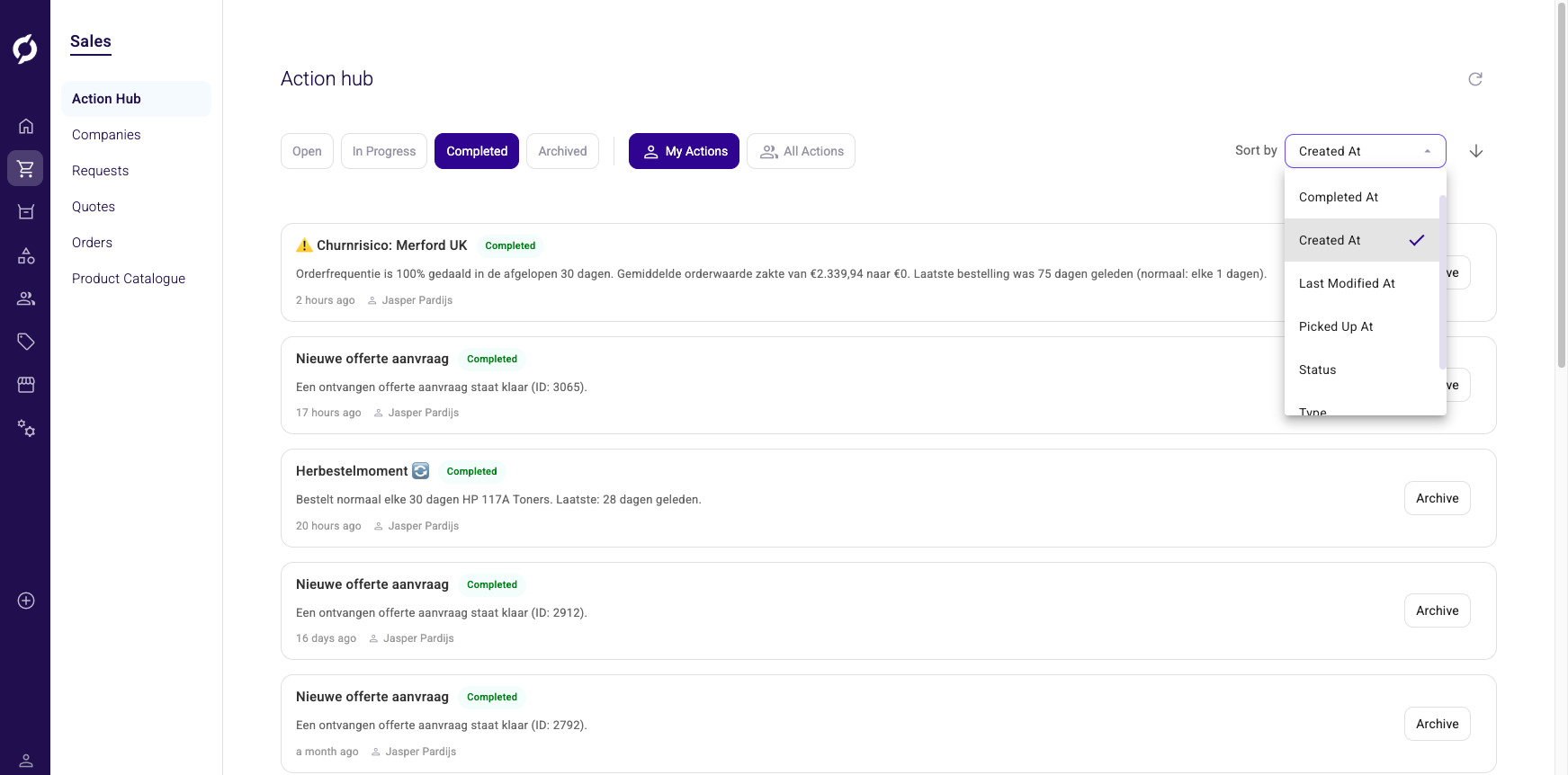
- Use Sort by to change the sort field. Options include Created At, Completed At, Last Modified At, Picked Up At, Status and Type.
- Click the arrow next to Sort by to switch between ascending and descending order.
Pick up a ticket
When a ticket is Open, you can assign it to yourself.
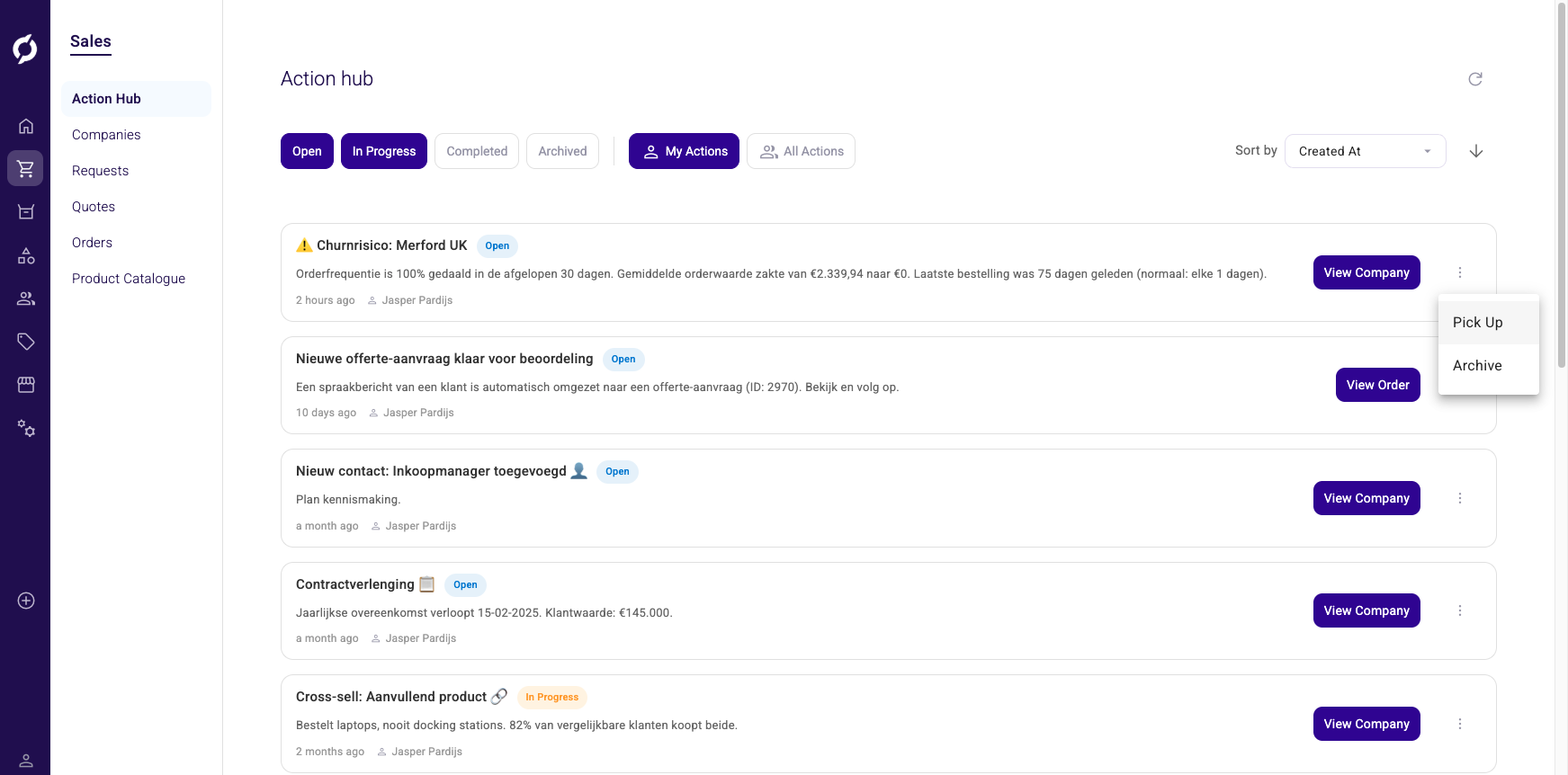
- Find the ticket you want to work on.
- Click the three-dot menu on the right side of the ticket.
- Click Pick Up.
The ticket status changes to In Progress and is assigned to you.
Take action on a ticket
Each ticket has an action button based on its type:
| Ticket type | Action button | What happens |
|---|---|---|
| Send Email | Send Email | Opens your email client with the recipient pre-filled |
| Phone Contact | Call | Opens your phone dialer |
| View Order | View Order | Opens the order, quote or request in a new tab |
| View Contact | View Contact | Opens the contact detail page |
| View Product | View Product | Opens the product in PIM |
| View Company | View Company | Opens the company page |
| View Customer | View Customer | Opens the customer detail page |
| View Cluster | View Cluster | Opens the cluster in PIM |
| External URL | Open Link | Opens an external URL in a new tab |
| Notification | (none) | No action button, you can only archive |
Complete a ticket
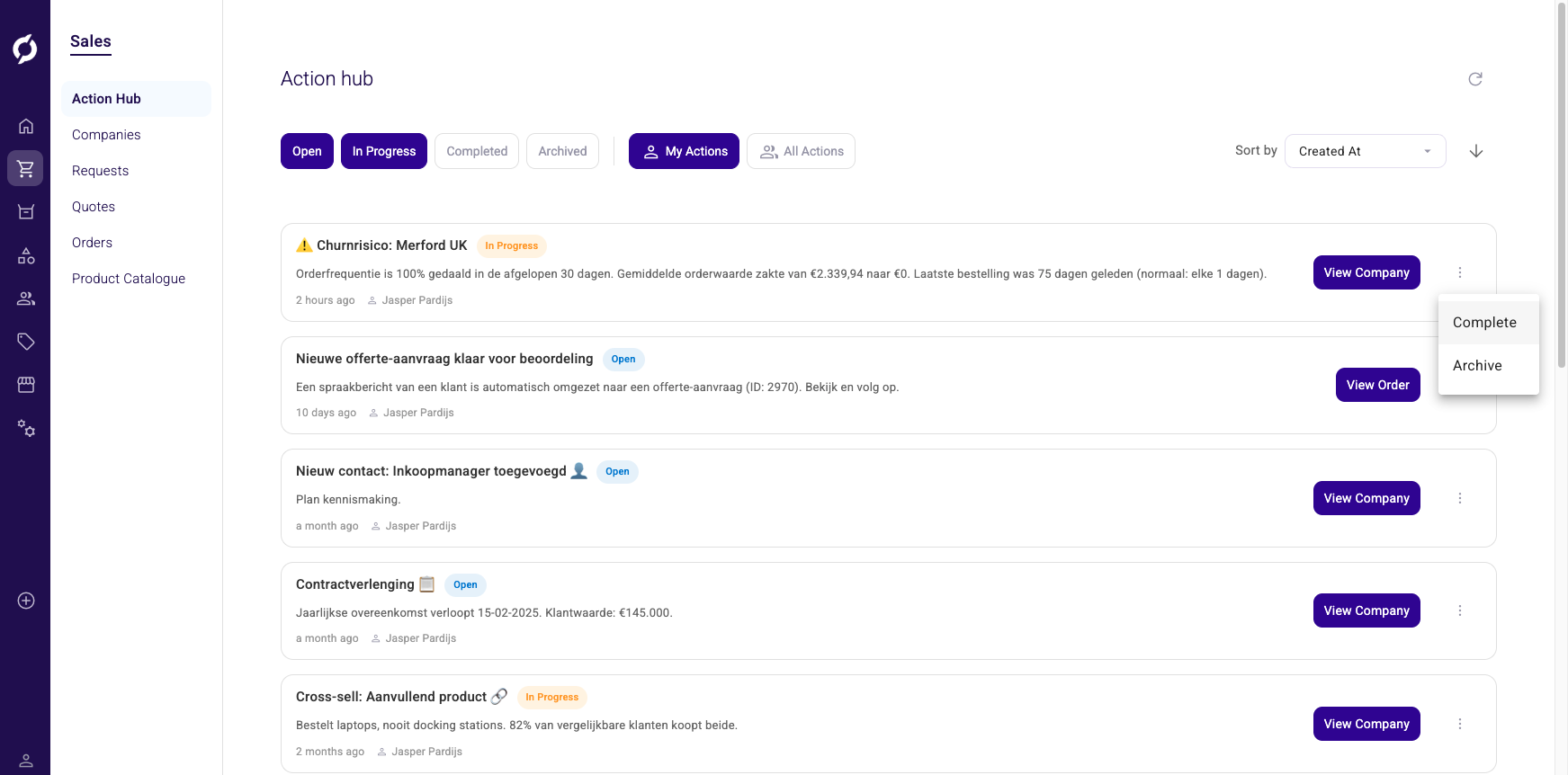
- Click the three-dot menu on a ticket that is assigned to you.
- Click Complete.
The ticket status changes to Completed. You can only complete tickets that are assigned to you.
Archive a ticket
- Click the three-dot menu on any ticket.
- Click Archive.
Archived tickets are hidden from the default view. To see them, select Archived in the status filters at the top.
Status overview
| Status | Meaning |
|---|---|
| Open | New ticket, not yet picked up |
| In Progress | Assigned to you, being worked on |
| Completed | Work is done |
| Archived | Dismissed or no longer relevant |
Load more tickets
The list loads 12 tickets at a time. Scroll to the bottom of the list to automatically load more.
To check for new tickets, click the Refresh button (circular arrow icon) at the top right of the page. A badge shows the count of tickets created in the last hour.